Files and folders
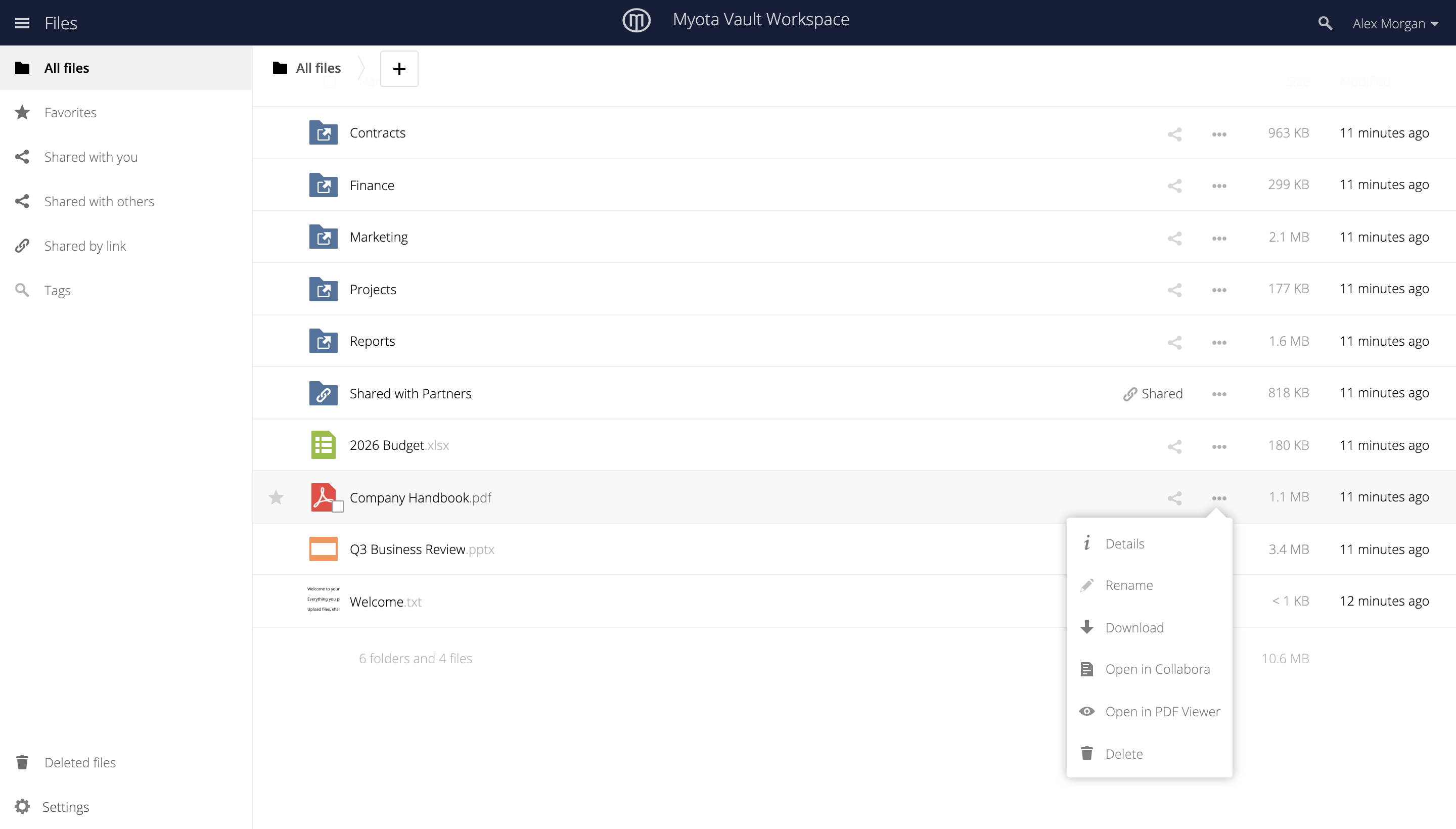
Your workspace holds all of your files and folders. This page covers finding your way around, adding files, and the actions available on each item.
Your workspace
When you sign in, Vault opens on All files, your complete set of files and folders.
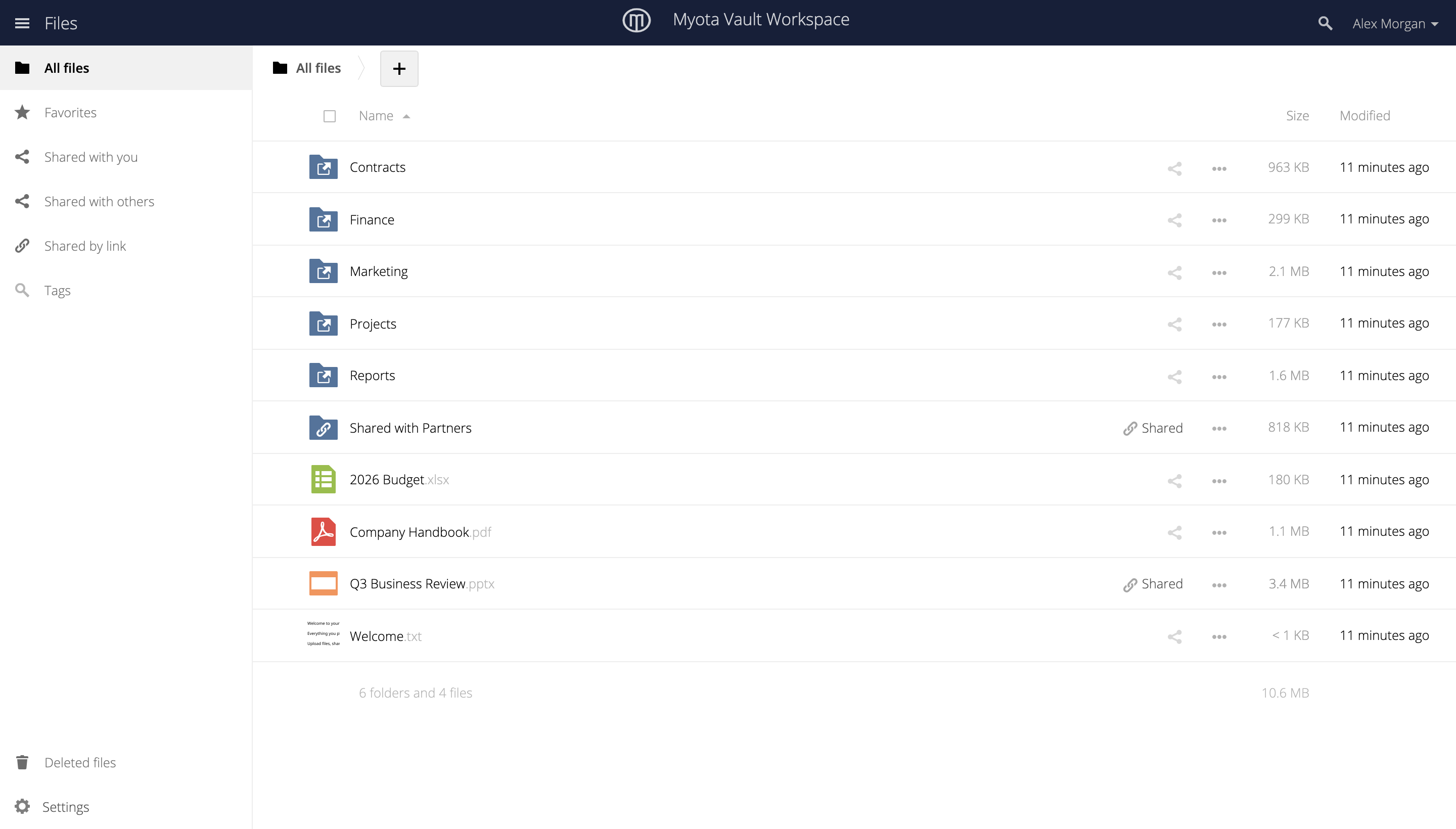
The left column moves between views: All files, Favorites, the Shared views, Tags, and Deleted files. Each row shows an item with its size, when it was last changed, and quick actions on the right.
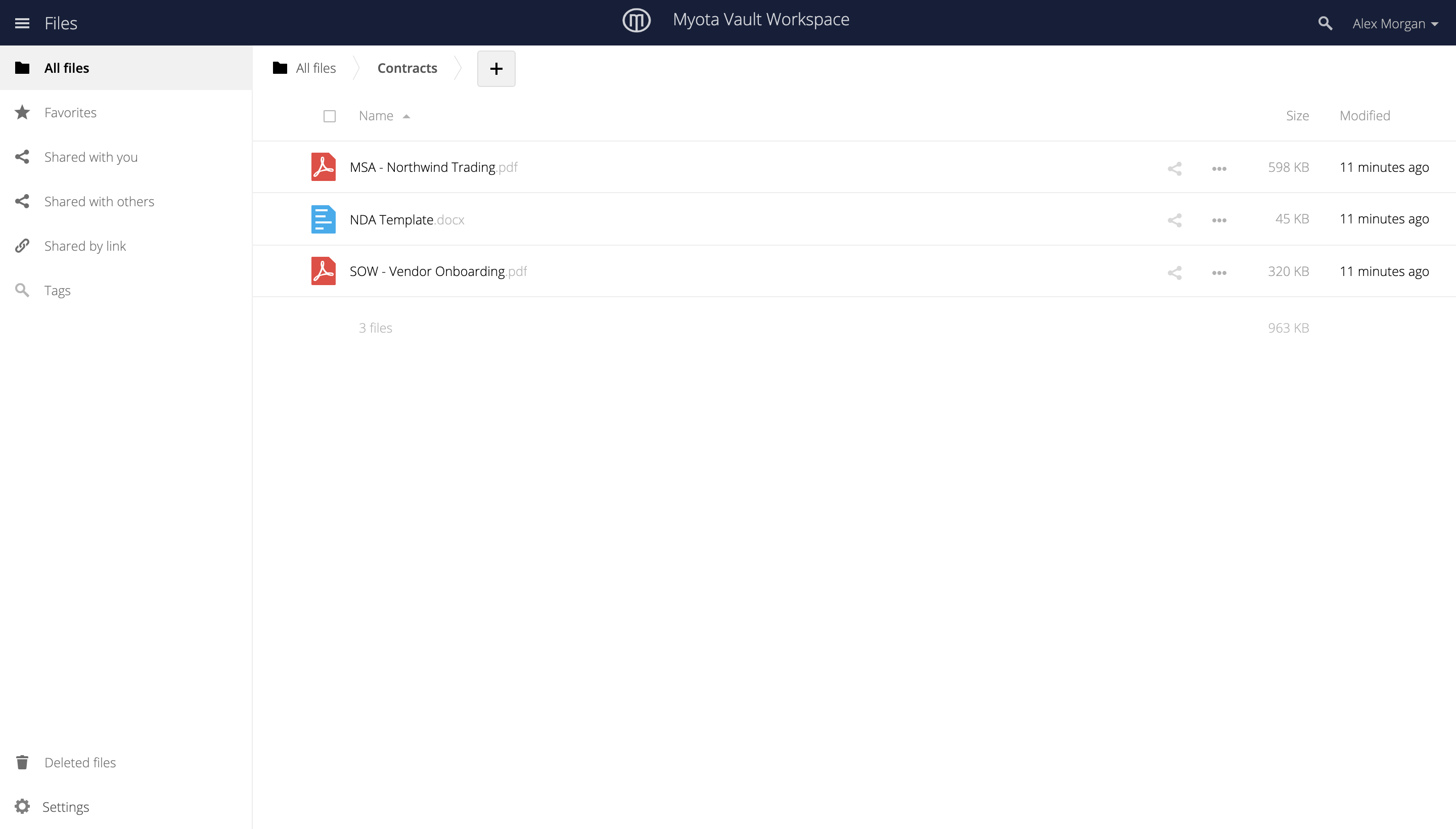
Open a folder
Select a folder to open it. The path at the top shows where you are; select any step to go back up.
Add files
Select the + button to add content, then upload files or create a new folder.
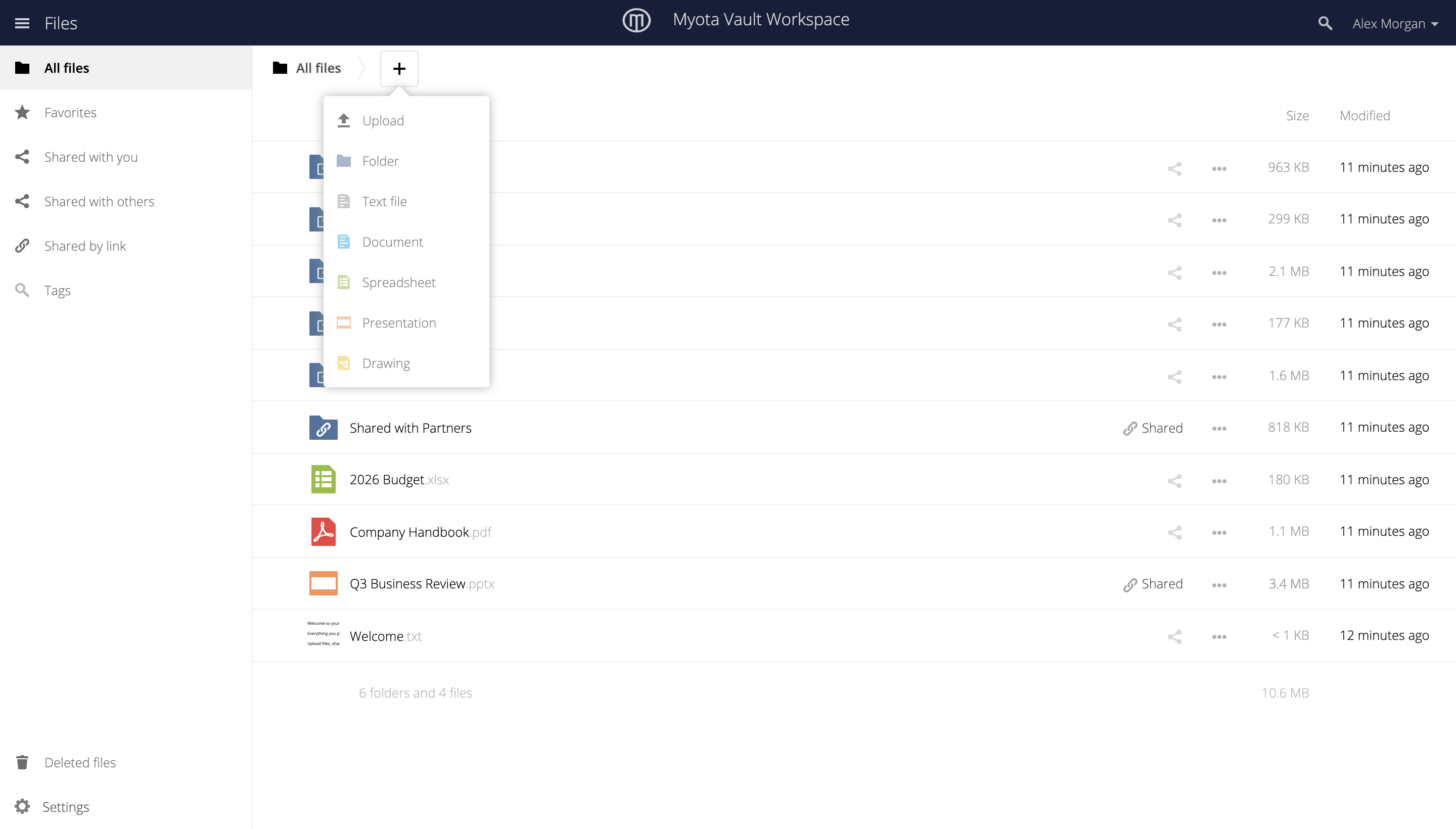
From the browser you can drag and drop files or pick them from your device. You can also add files without the browser:
-
the desktop sync app for Windows, macOS, and Linux
-
the mobile apps for iOS and Android
-
WebDAV, for common third-party file tools and native folder mounts
-
SFTP, FTP and FTPS, and S3 or SMB connectors, for protocol-based transfer